

Pages > Manage
Snapshots
Save the state of a page or quiz as you work, without publishing, so you never lose progress.
Overview
Snapshots save the state of a page or quiz you are working on, so you do not lose progress, and you do not need to publish.
Snapshots are saved in two ways:
- Manually — reach a checkpoint in your work and save a snapshot with a name that describes the objective, such as "Hero section finished" or "Ready for review".
- Automatically — as time passes while you work, SuperFunnel saves snapshots for you.
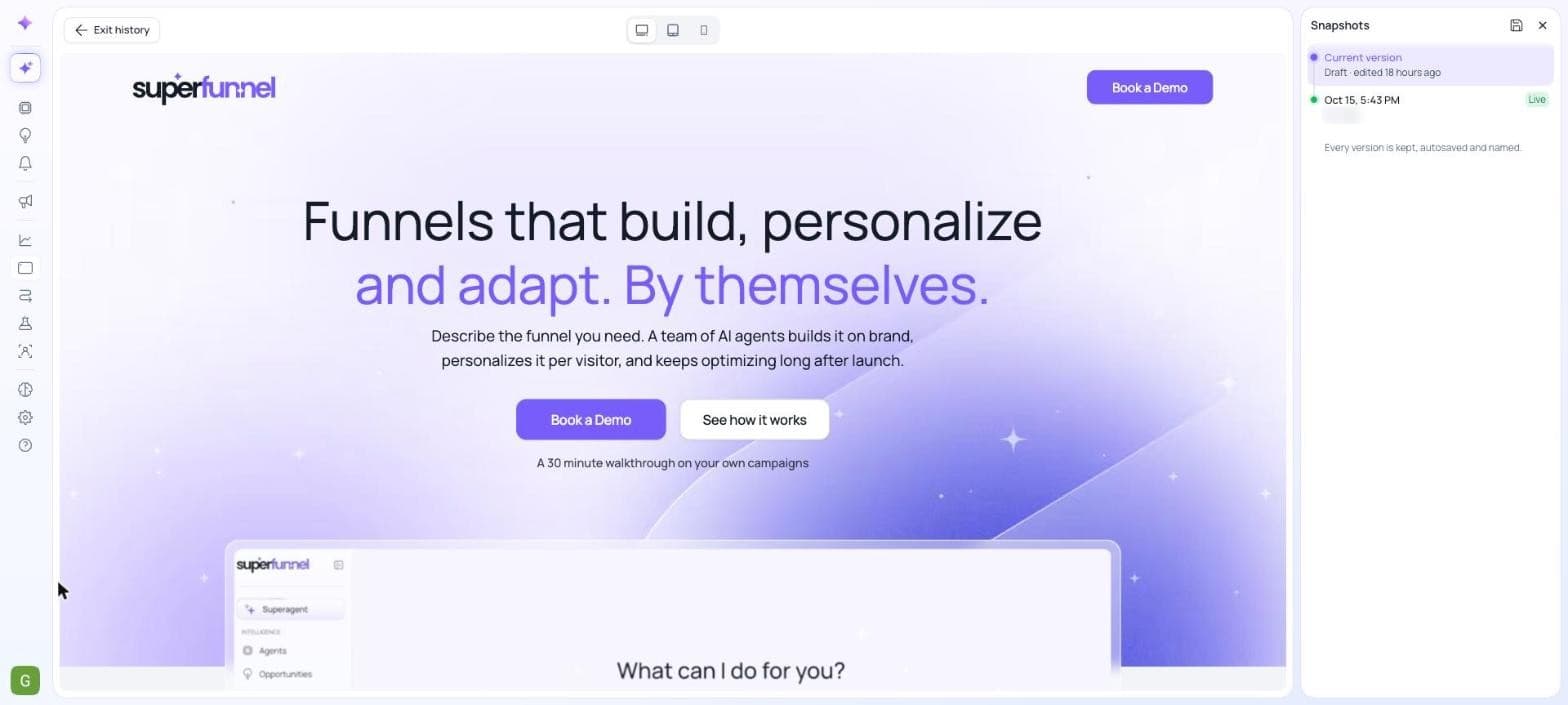
You can click a snapshot to see a quick render of it, so you can check what the page looked like at that point. If you need to go back, you can revert to a snapshot.
Where to Find Snapshots
In the editor, click the Snapshots (clock) icon at the top right of the toolbar. A Snapshots panel opens on the right with your Current version at the top, followed by earlier versions, including the version that is Live. Use the save button at the top of the panel to name a new snapshot. The panel notes that every version is kept, autosaved, and named.
Documentation in progress
This page is a placeholder. Full steps and details are coming soon.
Summary
Snapshots let you save your work in progress, by hand or automatically, preview what a page looked like at each point, and revert to one if you need to, all without publishing.