

Agents & Brain
Agent Settings
Configure how Agents approve changes and which AI model it uses to analyze your funnels.
Overview
You have control over which AI models are used by your agents, as well as how they handle approvals. Below we discuss how to switch from the default (and suggested) Auto mode to a specific AI model. We also discuss how to change your approval preferences. This lets you balance automation with safety.
AI Model Selection
Agents analyze your funnel data and make suggestions using an AI model. By default, agents use "Auto" to pick the best model for each task. But you can override that choice and use a specific model from Anthropic, Google, or OpenAI.
Auto (default): Agents automatically select the best model for the task. This adapts as models change, so it's the recommended choice for most users.
Other providers: Anthropic (Claude), Google (Gemini), and OpenAI (GPT) offer different models at different price points and performance levels. You can choose any of them based on your needs — cost, accuracy, provider preference, or to avoid outages with a particular service.
Models and pricing change constantly
AI models evolve quickly. So do their pricing. At the time of writing, Opus 5 and GPT-5.6 sol were considered the highest performing models, but they were also the most expensive.
Our goal is to use the least credits while getting the job done, since these are our costs too.
Use Your Own AI Subscription
Every built-in model, including Auto, is billed through your SuperFunnel AI credits. If you'd rather pay your provider directly instead of drawing down credits, you can connect a custom model with your own API key. Agents then call that model directly, and usage is billed to your account with the provider.
Open the model selector
Click the model picker in the SuperAgent prompt box, the sparkle button that shows Auto by default.
Browse all models
Click Browse all models... at the bottom of the dropdown to open the full model list.
Add a custom model
Click + Add custom model in the left panel. Fill in:
- Provider — the API format your model speaks, such as OpenAI-compatible.
- Display name — how the model appears in your model list.
- Model id — the exact model identifier your provider expects, for example
deepseek-chat. - Base URL — your provider's API endpoint, for example
https://api.deepseek.com/v1. - API key — your key for that provider.
- Description (optional) — a short note to help you tell models apart later.
Save and select it
Click Add model. It now appears in your model list, and you can select it for your agents like any built-in model.
Your API key is yours to manage
SuperFunnel stores your key securely and never displays it again after you add it. You're responsible for the key's usage limits, rate limits, and any costs your provider charges.
Approval Modes
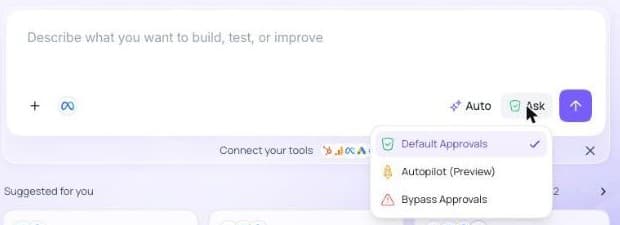
Some agent actions change your account. There are three approval modes:
- Default Approvals — The agent asks you before every action that needs approval, so you review each one and can modify it before it applies. Use this when you want full control.
- Autopilot (currently labelled Preview in the app) — safe actions run on their own, and medium-risk actions are reviewed automatically (see How Autopilot Decides). Dangerous actions are always sent to you.
- Bypass Approvals — everything runs without asking, with no review step.
When an agent asks, it pauses and waits in the chat until someone answers.
Risk Levels
Every action has a risk level:
- Safe — no real change, such as reading data.
- Medium — reversible changes, such as duplicating a page, editing a CMS entry, or creating a report.
- Dangerous — hard to undo or public, such as publishing a page, deleting a CMS entry, redeploying a version, or creating or changing an agent.
Actions from your Connectors are rated by what they do. Reading is safe, writing, exporting, or sending is medium, and deleting or admin actions are dangerous. Anything unclassified, or from an untrusted connector, is treated as dangerous.
| Mode | Safe | Medium | Dangerous |
|---|---|---|---|
| Default Approvals | Asks you | Asks you | Asks you |
| Autopilot | Runs | Reviewed automatically, asks you if unsure | Asks you |
| Bypass Approvals | Runs | Runs | Runs |
Which Mode Applies
Which mode is used depends on where the agent is running:
- In SuperAgent chat, you pick the mode with the shield button in the prompt box, next to the model picker. It starts on Default Approvals, and the button reads Ask until you change it.
- For scheduled agents, the mode is set on the agent itself. It starts on Default Approvals.
- Through MCP, the mode is fixed. Agent runs started this way use Autopilot, and tools called directly run without a SuperFunnel approval, because your MCP client (such as Claude) asks you itself.
Exceptions
- A connector's policy applies in every mode. Deny never runs, and Allow always runs.
- Some actions always need a person, even in Bypass Approvals: changing an integration (webhooks, HubSpot, connected accounts), closing an Alert, and discarding an Opportunity.
- Scheduled agents can always create and update Alerts and Opportunities.
Review all script changes
Be extremely cautious with script changes — review them carefully before they go live, or run tests if you bypassed the approval process. While UI changes may not require looking at code, script changes can break the page, block tracking, or cause other issues that are harder to spot without testing.
Summary
- Model selection lets you optimize for accuracy, speed, cost, or provider availability. Auto is recommended and adapts per task.
- Bring your own API key to bypass AI credits entirely and pay your model provider directly.
- Approval modes give you control: Default Approvals for full review, Autopilot for speed with a safety net, Bypass for maximum automation. Some actions, like changing an integration or closing an Alert, always need a person.
- Scripts are risky — review script changes carefully, even in Autopilot or Bypass mode.