

Analytics & Leads > Event Tracking
Online Event Tracking
Track on-page interactions in real time using the SuperFunnel JavaScript event API.
Overview
Online event tracking lets you record visitor interactions that happen directly on your page — clicks, scroll milestones, partner link clicks, and any other custom engagement signal. Events are automatically linked to the visitor's session, so they appear alongside other analytics for that visit.
Common uses:
- Button and CTA clicks
- Outbound and affiliate link clicks
- Scroll depth milestones
- Micro-conversions before form submission
- Custom widget interactions
Display events as columns
To have an event appear as a column in a page's variants table, add it as a secondary conversion in the page's conversion goal. For events tracked through external services such as Google Tag Manager or Pixel, reach out to support@superfunnel.ai and we can help with setup.
Default conversion events
Every SuperFunnel page emits two built-in conversion events. You can use either as a trigger in Google Tag Manager, a pixel, or your own scripts:
| Event | Fires when | Scope |
|---|---|---|
superfunnel-conversion | Any conversion happens, including a click-out (a tracked outbound link or CTA click) or a form submission | Broad |
superfunnel-form-submission | A visitor reaches the Final Step of a form or quiz | Narrow |
A form submission means the visitor reached a Final Step. Every form and quiz should have a Final Step; without one, superfunnel-form-submission never fires and your completers go uncounted. Visitors who leave before the Final Step are recorded as partial leads instead.
If a high-converting quiz shows 0 Form Submissions, it usually means your real conversion happens before the final step, for example an email capture mid-quiz, so visitors never trigger superfunnel-form-submission.
Converting before the Final Step?
When a visitor becomes a complete lead before the final step, fire your own custom event at the exact moment that matters (shown below).
To count the moment that matters to you, fire your own event with window.sf.reportEvent() at that point. The example below reports a submit-email event the first time the visitor's email field has a value, regardless of which step they're on:
<script>
  (function() {
    var reported = false;

    function onStepChange() {
      if (reported) return;
      // getValue('email') reads the value of the SuperFunnel email field.
      if (getValue('email')) {
        window.sf.reportEvent('submit-email');
        reported = true; // fire once per session
      }
    }

    window.addEventListener('sf:step-change', onStepChange);

    return function() {
      window.removeEventListener('sf:step-change', onStepChange);
    };
  })();
</script>Because it checks only for a value in the email field — never a specific step — it keeps working if steps are renamed, reordered, or restructured.
Conversion Events and Goals
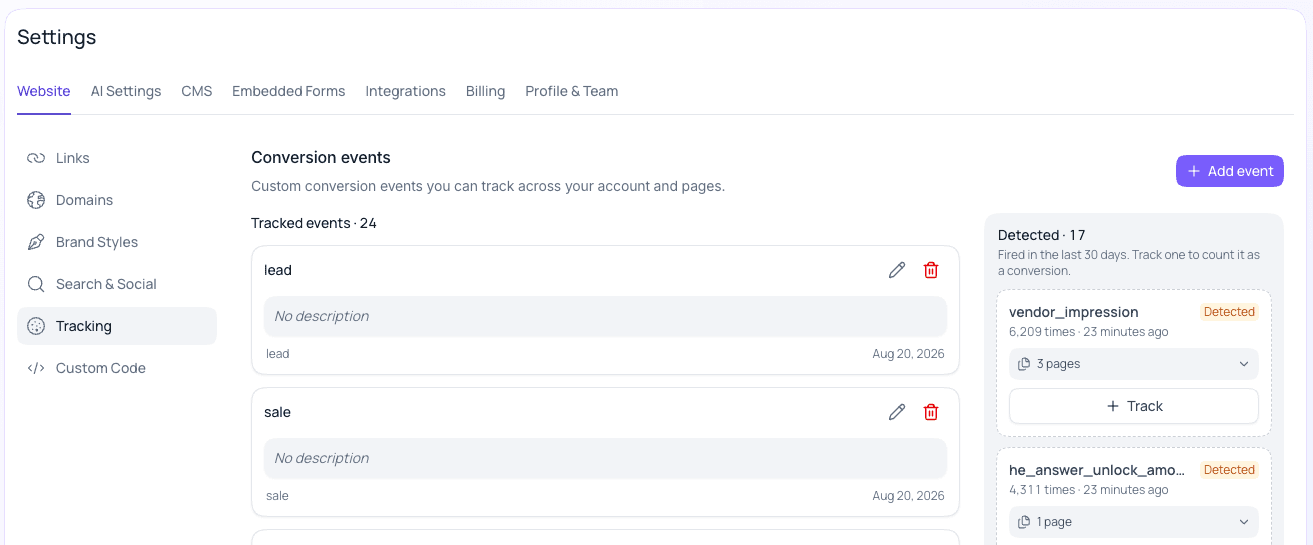
A conversion event is an event you choose to count as a conversion, such as a clickout, a purchase, a form submission, or a scheduled call. Manage them in Settings > Website > Tracking, under Conversion events:
- Tracked events — the events you have created. Click Add event to create one.
- Detected — events your pages fired in the last 30 days that you are not tracking yet. SuperFunnel detects them automatically and records them either way, and the list shows how many times each fired and on how many pages. Click + Track to add one to your tracked events, so it counts as a conversion and can be chosen as a goal.
Set a Page's Conversion Goal
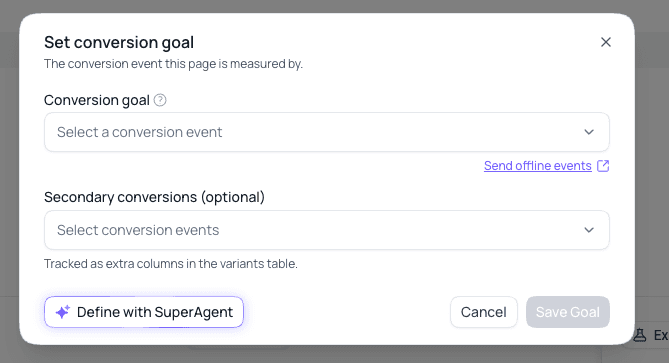
Every page is measured by a conversion goal. If a page does not have one yet, a banner at the top of the page asks you to set one.

Click Set Goal
Click Set Goal in the banner at the top of the page.
Choose the conversion goal
Select the Conversion goal, the event this page is measured by. Click the dropdown and pick an existing event, or choose Create new conversion event at the top of the list to add one. You can also create events ahead of time in Settings > Website > Tracking. If conversions happen outside the page, use Send offline events. See Offline Conversion Tracking.
Add secondary conversions (optional)
Under Secondary conversions, choose any other events you want to track on this page. They appear as extra columns in the variants table.
Save
Click Save Goal. Not sure which event to choose? Click Define with SuperAgent.
How It Works: SuperFunnel Example
SuperFunnel automatically exposes a global JavaScript function on every page:
window.sf.reportEvent(eventName);Call this function whenever a user action occurs that you want to track. No setup or configuration is required — the function is always available.
| Parameter | Type | Description |
|---|---|---|
eventName | string | The name of the event to record. Use a short, descriptive slug. |
Examples
Track a CTA button click
window.sf.reportEvent("cta-click");Track an outbound or partner link click
window.sf.reportEvent("partner-click");Typical uses: affiliate links, marketplace links, outbound referrals.
Track scroll depth
window.sf.reportEvent("scroll-depth-75");Call this when the user scrolls past a threshold you define in your page's JavaScript.
Where to Add This Code
You can call window.sf.reportEvent() from any JavaScript running on your page:
- Custom HTML sections
- HTML Stepper final steps
- Custom widgets
- Any inline
<script>block on the page
Order matters
Scripts ran in the body of a page should be deferred 1 ms or placed at the end of the page. Running scripts prematurely may prevent them from picking up on an event.
Verify events are firing
Open your browser console on the live page to watch events as they're reported. See Debugging & Session IDs for what each logged event contains and how to read per-session identifiers.